| |||||||
 | |||||||
|
|
Active FTP vs. Passive FTP, a Definitive Explanation
Contents:
IntroductionOne of the most commonly seen questions when dealing with firewalls and other Internet connectivity issues is the difference between active and passive FTP and how best to support either or both of them. Hopefully the following text will help to clear up some of the confusion over how to support FTP in a firewalled environment. This may not be the definitive explanation, as the title claims, however, I've heard enough good feedback and seen this document linked in enough places to know that quite a few people have found it to be useful. I am always looking for ways to improve things though, and if you find something that is not quite clear or needs more explanation, please let me know! Recent additions to this document include the examples of both active and passive command line FTP sessions. These session examples should help make things a bit clearer. They also provide a nice picture into what goes on behind the scenes during an FTP session. Now, on to the information... The BasicsFTP is a TCP based service exclusively. There is no UDP component to FTP. FTP is an unusual service in that it utilizes two ports, a 'data' port and a 'command' port (also known as the control port). Traditionally these are port 21 for the command port and port 20 for the data port. The confusion begins however, when we find that depending on the mode, the data port is not always on port 20. Active FTPIn active mode FTP the client connects from a random unprivileged
port (N > 1023) to the FTP server's command port, port 21. Then,
the client starts listening to port N+1 and sends the FTP command
From the server-side firewall's standpoint, to support active mode FTP the following communication channels need to be opened:
When drawn out, the connection appears as follows: 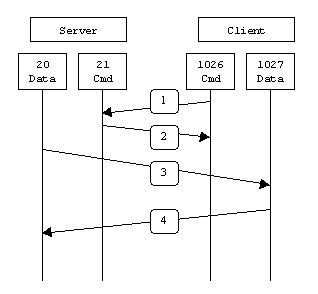
PORT 1027. The
server then sends an ACK back to the client's command port in step
2. In step 3 the server initiates a connection on its local data
port to the data port the client specified earlier. Finally, the
client sends an ACK back as shown in step 4.
The main problem with active mode FTP actually falls on the client side. The FTP client doesn't make the actual connection to the data port of the server--it simply tells the server what port it is listening on and the server connects back to the specified port on the client. From the client side firewall this appears to be an outside system initiating a connection to an internal client--something that is usually blocked. Active FTP ExampleBelow is an actual example of an active FTP session. The only
things that have been changed are the server names, IP addresses,
and user names. In this example an FTP session is initiated from
testbox1.slacksite.com (192.168.150.80), a linux box running the
standard FTP command line client, to testbox2.slacksite.com
(192.168.150.90), a linux box running ProFTPd 1.2.2RC2. The
debugging ( There are a few interesting things to consider about this dialog.
Notice that when the testbox1: {/home/p-t/slacker/public_html} % ftp -d testbox2
Connected to testbox2.slacksite.com.
220 testbox2.slacksite.com FTP server ready.
Name (testbox2:slacker): slacker
---> USER slacker
331 Password required for slacker.
Password: TmpPass
---> PASS XXXX
230 User slacker logged in.
---> SYST
215 UNIX Type: L8
Remote system type is UNIX.
Using binary mode to transfer files.
ftp> ls
ftp: setsockopt (ignored): Permission denied
---> PORT 192,168,150,80,14,178
200 PORT command successful.
---> LIST
150 Opening ASCII mode data connection for file list.
drwx------ 3 slacker users 104 Jul 27 01:45 public_html
226 Transfer complete.
ftp> quit
---> QUIT
221 Goodbye.
Passive FTPIn order to resolve the issue of the server initiating the
connection to the client a different method for FTP connections was
developed. This was known as passive mode, or In passive mode FTP the client initiates both connections to the
server, solving the problem of firewalls filtering the incoming data
port connection to the client from the server. When opening an FTP
connection, the client opens two random unprivileged ports locally
(N > 1023 and N+1). The first port contacts the server on port
21, but instead of then issuing a From the server-side firewall's standpoint, to support passive mode FTP the following communication channels need to be opened:
When drawn, a passive mode FTP connection looks like this: 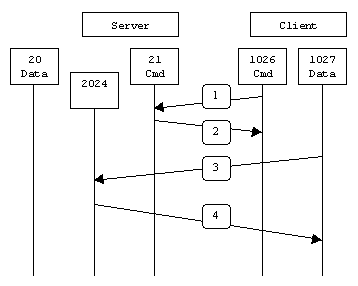
PASV command. The server then
replies in step 2 with PORT 2024, telling the client
which port it is listening to for the data connection. In step 3 the
client then initiates the data connection from its data port to the
specified server data port. Finally, the server sends back an ACK in
step 4 to the client's data port.
While passive mode FTP solves many of the problems from the client side, it opens up a whole range of problems on the server side. The biggest issue is the need to allow any remote connection to high numbered ports on the server. Fortunately, many FTP daemons, including the popular WU-FTPD allow the administrator to specify a range of ports which the FTP server will use. See Appendix 1 for more information. The second issue involves supporting and troubleshooting clients which do (or do not) support passive mode. As an example, the command line FTP utility provided with Solaris does not support passive mode, necessitating a third-party FTP client, such as ncftp. With the massive popularity of the World Wide Web, many people prefer to use their web browser as an FTP client. Most browsers only support passive mode when accessing ftp:// URLs. This can either be good or bad depending on what the servers and firewalls are configured to support. Passive FTP ExampleBelow is an actual example of a passive FTP session. The only
things that have been changed are the server names, IP addresses,
and user names. In this example an FTP session is initiated from
testbox1.slacksite.com (192.168.150.80), a linux box running the
standard FTP command line client, to testbox2.slacksite.com
(192.168.150.90), a linux box running ProFTPd 1.2.2RC2. The
debugging ( Notice the difference in the testbox1: {/home/p-t/slacker/public_html} % ftp -d testbox2
Connected to testbox2.slacksite.com.
220 testbox2.slacksite.com FTP server ready.
Name (testbox2:slacker): slacker
---> USER slacker
331 Password required for slacker.
Password: TmpPass
---> PASS XXXX
230 User slacker logged in.
---> SYST
215 UNIX Type: L8
Remote system type is UNIX.
Using binary mode to transfer files.
ftp> passive
Passive mode on.
ftp> ls
ftp: setsockopt (ignored): Permission denied
---> PASV
227 Entering Passive Mode (192,168,150,90,195,149).
---> LIST
150 Opening ASCII mode data connection for file list
drwx------ 3 slacker users 104 Jul 27 01:45 public_html
226 Transfer complete.
ftp> quit
---> QUIT
221 Goodbye.
Other NotesA reader, Maarten Sjouw, pointed out that active FTP will not function when used in conjunction with a client-side NAT (Network Address Translation) device which is not smart enough to alter the IP address info in FTP packets. SummaryThe following chart should help admins remember how each FTP mode works: Active FTP :
command : client >1023 -> server 21
data : client >1023 <- server 20
Passive FTP :
command : client >1023 -> server 21
data : client >1023 -> server >1023
A quick summary of the pros and cons of active vs. passive FTP is also in order: Active FTP is beneficial to the FTP server admin, but detrimental to the client side admin. The FTP server attempts to make connections to random high ports on the client, which would almost certainly be blocked by a firewall on the client side. Passive FTP is beneficial to the client, but detrimental to the FTP server admin. The client will make both connections to the server, but one of them will be to a random high port, which would almost certainly be blocked by a firewall on the server side. Luckily, there is somewhat of a compromise. Since admins running
FTP servers will need to make their servers accessible to the
greatest number of clients, they will almost certainly need to
support passive FTP. The exposure of high level ports on the server
can be minimized by specifying a limited port range for the FTP
server to use. Thus, everything except for this range of ports can
be firewalled on the server side. While this doesn't eliminate all
risk to the server, it decreases it tremendously. See Appendix 1
for more information. ReferencesAn excellent reference on how various internet protocols work and the issues involved in firewalling them can be found in the O'Reilly and Associates book, Building Internet Firewalls, 2nd Ed, by Brent Chapman and Elizabeth Zwicky. Finally, the definitive reference on FTP would be RFC 959, which sets forth the official specifications of the FTP protocol. RFCs can be downloaded from numerous locations, including http://www.faqs.org/rfcs/rfc959.html. This page is sponsored by: | ||||||